Marvel casino app: mobile access on your phone
Published:
The Marvel casino app page is built around quick access from a phone: install the casino from its mobile page, open the icon and return to the lobby without typing the address each time. The page describes app-style access and shows an install flow rather than an app-store listing. Check that the install instructions match your device before proceeding.
| Mobile detail | What the page shows |
|---|---|
| Access | Casino site opened in a mobile browser |
| Android flow | Tap Install, confirm the system dialog, then Open |
| iOS flow | Use Safari’s Share menu, choose Add to Home Screen, then Add |
| Games | Slots, crash, live casino, table games and other lobby categories |
| Promotions | Bonus cards and tournament notices can be viewed on mobile |
| Account | Register or log in using the same account credentials |
What the app page actually offers
The site describes its mobile version as full access to the casino on your phone. To see the main lobby and account entry point before installing, visit Marvel casino. The app page highlights game access and bonus notifications, with the interface presented in an app-like format. It does not change account rules or promotion terms.
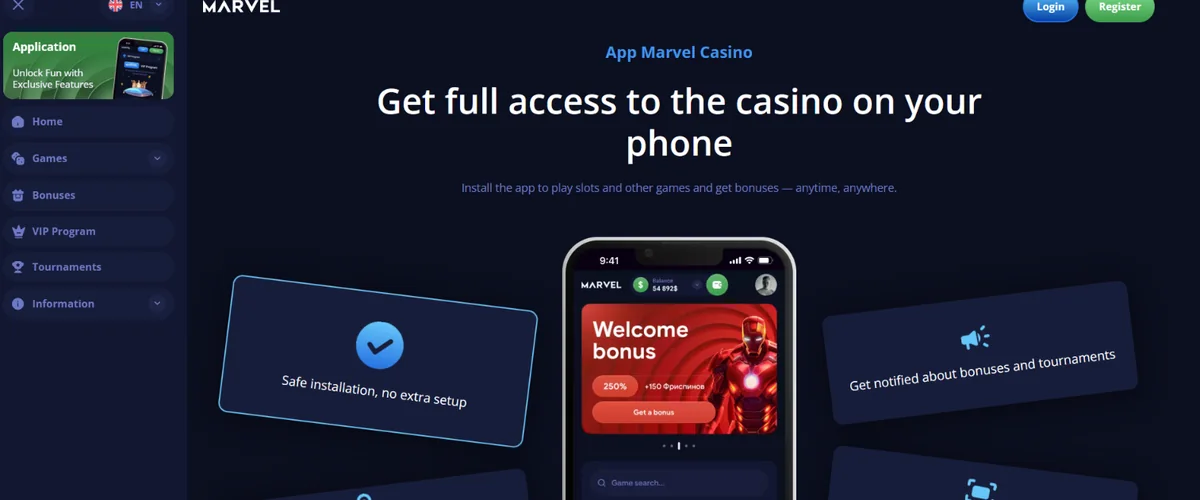
When you first open the page on a phone, look for its installation prompt or instructions. The Android flow shown uses a system confirmation dialog. The iOS flow uses Safari’s built-in option to add a website shortcut to the home screen. In both cases, the shortcut makes the site easier to reopen.
Because the page can be installed through the browser, check what your device is actually adding. If the installation screen looks different from the casino’s instructions, pause and verify that you are on the official website and that the address is correct.
Install Marvel casino on Android or iPhone
Both setups take only a few actions, although the menu names differ by device. Use the flow that matches your phone:
- Android: tap Install on the app page, confirm in the system dialog, then tap Open.
- iPhone or iPad: in Safari, tap Share, choose Add to Home Screen and tap Add.
The precise wording can vary between browser and operating-system versions. Neither process requires a new casino account; log in with your existing credentials or finish registration first if you are new.
If there is no install button, check the browser’s own menu for Install app or Add to Home Screen. If neither option is available, you can still use the casino through the browser and bookmark the page.
Games, promotions and account use on mobile
The mobile lobby keeps the main categories close at hand: slots, crash games, live casino, popular and new games, instant titles, jackpots and table games. A search field helps when you know a game title, while the category tabs are useful when you want to browse. Test the layout before choosing a game so you know where the lobby and account controls sit.
The app page promotes notifications about bonuses and tournaments. Treat a notification as a prompt to inspect the actual offer, not as a complete set of terms. Open the promotion, check its eligibility and expiry, and confirm any required code or deposit before you activate it.
Account actions remain tied to your casino profile. Registration, login, currency choice and bonus status should match what you see on desktop. If a balance or offer seems different on mobile, refresh the account and compare the same currency and promotion details before contacting support. For individual device steps, see the Marvel casino iOS guide or the Marvel casino Android guide.
Mobile access is useful when you want to check a game or account away from a computer, but small screens can hide details. Before confirming a payment, review the amount, method, currency and any displayed fees in the cashier. The same careful check applies to withdrawals and bonus activation.
Fix common installation and access problems
If the install prompt does not appear, confirm that you opened the app page in a browser that supports installation. Reload the page, check the browser menu and make sure you have a stable connection. If the option remains unavailable, use the browser version directly instead of downloading an unofficial file.
If the home-screen icon opens a blank or outdated page, close it and reopen the site in the browser. Check for a connection issue or a browser update, then add the shortcut again if necessary. The shortcut is a convenient entry point; it does not store a separate casino balance or replace your account credentials.
For login problems, use password recovery through the official sign-in page. For missing promotions or payment questions, contact support from your account and include your device, browser and the steps you tried. That context can help support distinguish an installation problem from an account issue.
FAQ
Is the Marvel casino app available for phones?
The casino’s app page describes installation on Android and adding a home-screen shortcut on iOS. The browser version remains another way to access the site.
Do I need a new account for the app?
No separate account is shown in the install instructions. Use your existing casino login, or register through the site first.
Can I install Marvel casino on an iPhone?
The iOS instructions use Safari’s Share menu and Add to Home Screen. The resulting icon opens the casino from your home screen.
Why can’t I see the install button?
Install prompts depend on the browser and device. Try the browser menu or continue using the mobile website.
Will app notifications activate a bonus automatically?
A notice does not replace the offer terms. Open the promotion and follow its activation instructions in your account.