Marvel casino iOS: add the site to your home screen
Published:
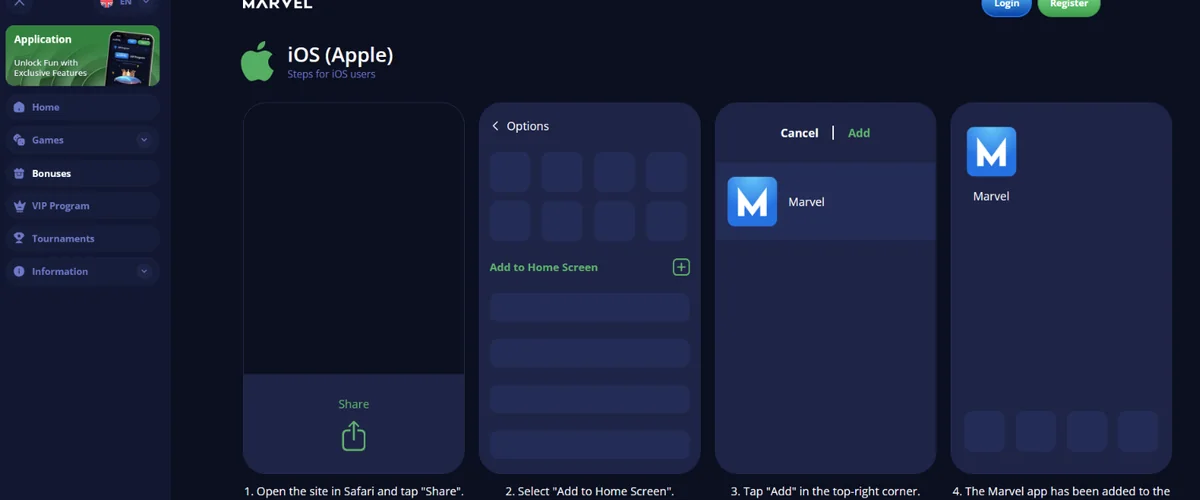
The Marvel casino iOS instructions use Safari to add a shortcut to your iPhone or iPad home screen. This gives you an app-style icon that opens the casino website; the pictured steps do not direct you to an App Store listing. Make sure the page has loaded before using the Share menu.
| Step | Action | What happens |
|---|---|---|
| 1 | Open the casino in Safari and tap Share | Safari opens its sharing and page-action menu |
| 2 | Choose Add to Home Screen | A preview lets you review the shortcut name |
| 3 | Tap Add in the upper corner | iOS creates the home-screen icon |
| 4 | Open the new Marvel icon | The casino loads from the shortcut |
Before adding the shortcut
Use Safari for the steps shown on the casino’s iOS page. Open Marvel casino there and let the page load before continuing. Other browsers may have a different menu or may not offer the same Add to Home Screen action; if you are not in Safari, switch browsers and load the official address.
Check that the page opens correctly before creating the shortcut. Wait for the lobby and account controls to appear, then confirm that the address bar shows the expected website. This prevents a broken or mistyped link from becoming the icon you tap later.
The shortcut opens the site; it does not create a separate account. Sign in with existing credentials or register first.
Add Marvel casino to an iPhone
Follow the steps in order; if a menu is longer on your device, scroll to find the named action.
- Open the casino page in Safari and tap Share.
- Select Add to Home Screen.
- Review the shortcut name and icon.
- Tap Add in the upper-right corner, then open the new icon.
The icon should appear on the home screen. Tap it to confirm the casino opens, then log in if needed. If it is not on the first page, check another page or the App Library.
The preview may let you edit the shortcut name. Keep “Marvel” or choose a short label. On iPad, the same action is available, though menu placement can vary.
Use the shortcut and keep your account in sync
After setup, open the Marvel icon whenever you want to return to the mobile site. The shortcut is a faster route to the same web account, not an independent profile. Your balance, promotions and game history remain associated with the credentials you use to sign in.
Before claiming a bonus from your phone, open its full details and check eligibility, code entry, expiry and wagering conditions. A banner can summarize an offer, but its full rules determine how it works. If a bonus does not appear, check the account’s promotion history before depositing again.
If you also use an Android device or want the broader mobile overview, read the Marvel casino app guide. It compares the phone access routes and explains where to look when the installation prompt differs between devices.
Troubleshoot iOS shortcut issues
If Add to Home Screen is missing, confirm that the page is open in Safari and scroll through the Share menu. If the casino page has not finished loading, wait and try again. A different iOS version may place the action lower in the menu.
If the new icon opens an error or an outdated page, open the casino directly in Safari and reload it. Check your connection and make sure the correct address is saved. You can remove the old shortcut and repeat the steps to create a fresh one.
If the site opens but your account does not, use the casino’s login or password-recovery option. For persistent access issues, contact support and mention your iPhone or iPad model, iOS version and browser. Those details make it easier to identify whether the problem comes from the shortcut or the account.
FAQ
Is there a Marvel casino iPhone app in the App Store?
The shown setup uses Safari’s Add to Home Screen option. It describes a website shortcut, not an App Store download.
How do I add Marvel casino to my iPhone?
Open the site in Safari, tap Share, choose Add to Home Screen and confirm with Add.
Can I use the shortcut on an iPad?
Yes. Use Safari’s Share menu and select Add to Home Screen; menu placement may differ by device layout.
Will the shortcut remember my casino login?
It opens the website. Sign in with your account credentials as needed.
What if Add to Home Screen does not appear?
Check that you are using Safari, then scroll through the Share menu or reload the casino page.